Notice: This page is still under development and currently being built. It is not yet intended for the public and will still change in content and appearance.
 For iPhone, iPad & Mac
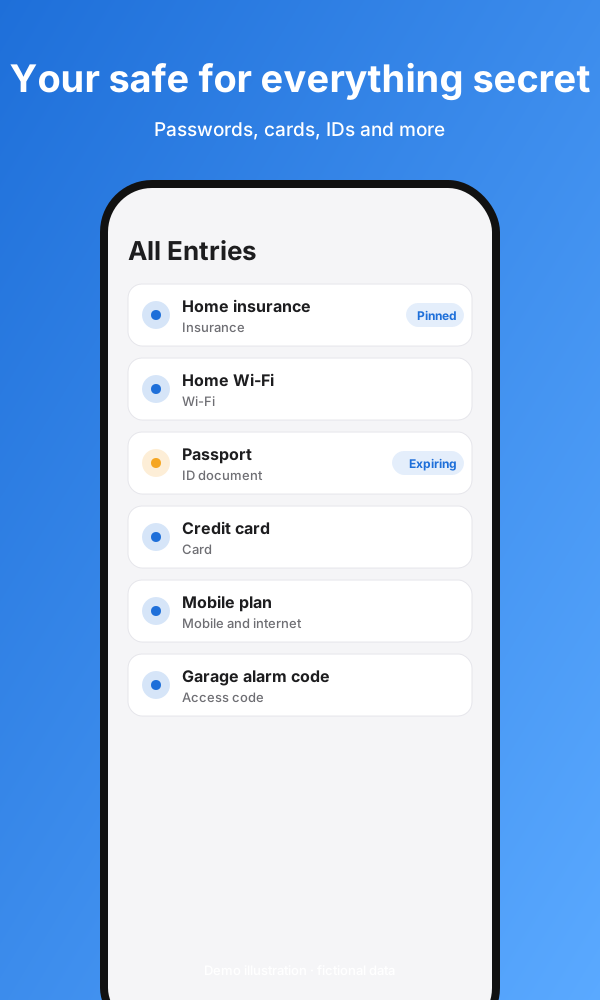
Logins, card numbers, Wi-Fi keys, the scan of your ID: OneTwo Safe gathers it all in one encrypted safe on iPhone, iPad and Mac. No account, no subscription, no ads.
Four small tools that run entirely in your browser. Nothing is sent to a server.
Locked
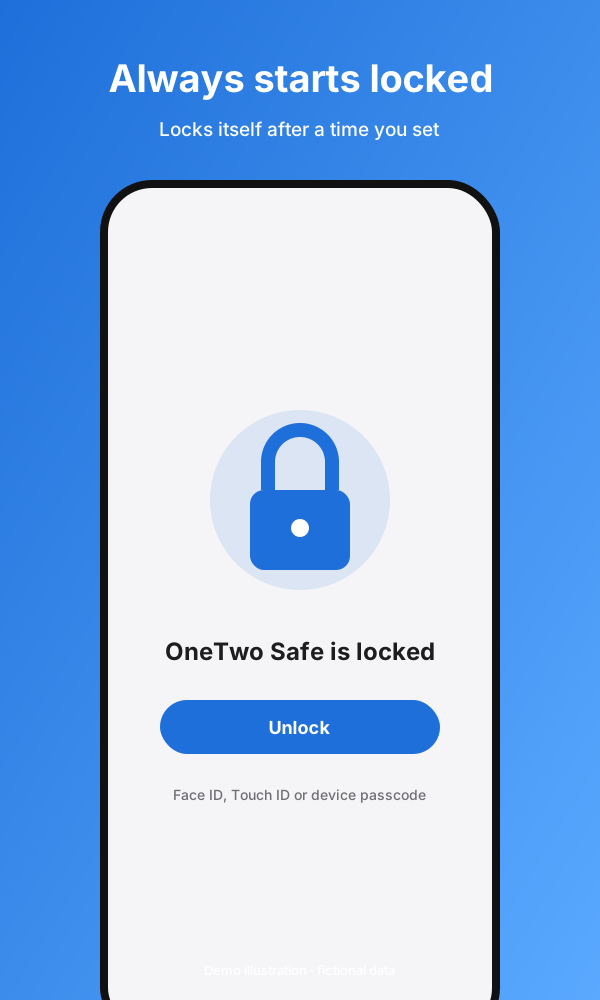
A simulation with fictional data. This is how the app feels: it starts locked, you open an entry, values stay hidden, and the clipboard clears itself.
The timings are shortened in the demo: it locks after 45 seconds without interaction and clears the simulated clipboard after 10 seconds. In the app you choose the lock timeout in steps from 1 to 600 minutes or “Never” (default 5 minutes) and the clipboard timeout from 5 to 120 seconds (default 60).
This is how the app creates strong credentials. Random values come from your browser’s random number generator.
The time estimate is an extra of this demo and does not appear in the app: a rough estimate for an offline attack at 10 billion guesses per second. The app shows the strength in bits. It always includes upper and lower case letters, offers further separators and word lists (German/English), and its word list is much larger than this demo’s.
How strong is a password? The check runs only in your browser. Nothing is sent or stored. Still, don’t enter a password you currently use.
This rating is simplified and differs from the app, which estimates locally in three levels (Weak, Fair, Strong) and shows no time to crack. The app gives you an overview of all stored passwords: weak and reused, without any password leaving the device.
Tick off what you have done. Your progress stays in this browser only.
There is more secret information in everyday life than you think – and almost all of it is urgently needed at some point.
The insurance customer number, the garage PIN, the router key: everything is in one place and quick to find with search.
Whatever sits on paper or in an ordinary note can be read by anyone. In OneTwo Safe everything is encrypted and behind a lock.
IDs, credit cards or licenses expire. With an expiry date and an optional reminder you won't miss a deadline.
From the router to the pet's chip number: household, school, vehicle and health have their own entry types too.
You set nothing up and need no account. The app works on your device.
iOS or iPadOS 18 and later. Unlock with Face ID, Touch ID or your device passcode.
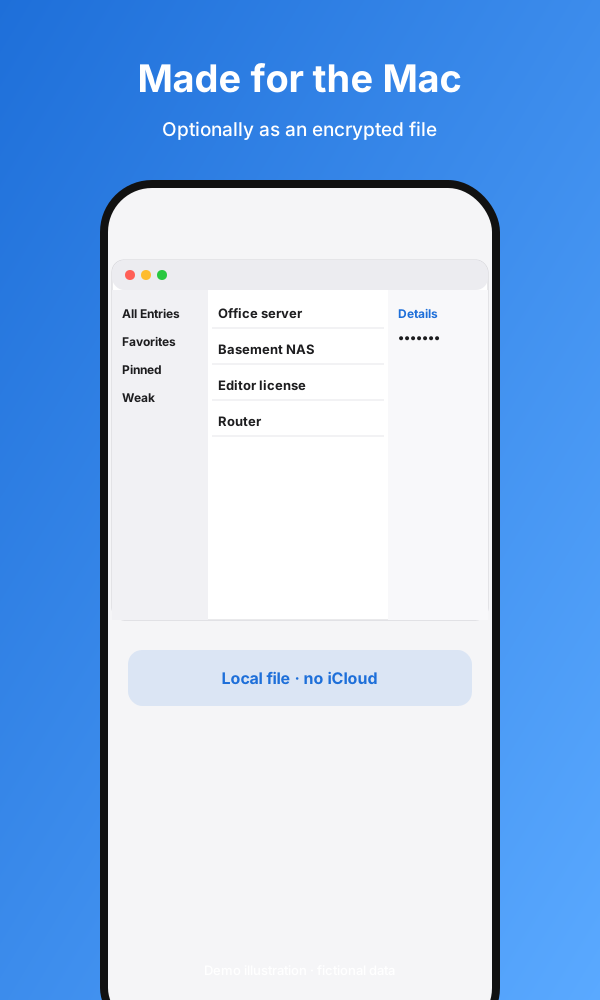
Native Mac app for macOS 15 and later with sidebar, table, context menus and keyboard shortcuts. Unlock with Touch ID or your Mac password.
Syncing through your private iCloud is off at first. You can turn it on under Settings › iCloud and off again at any time; turning it off deletes nothing.
Alternatively, all entries live in one encrypted file with its own password, for example on a network share or USB stick. iCloud then stays off on that Mac. The Mac also keeps an encrypted working copy in the app container.
Built with modern Apple frameworks (including SwiftUI, SwiftData and CryptoKit). The security features rely solely on Apple technologies; no external security libraries are used.
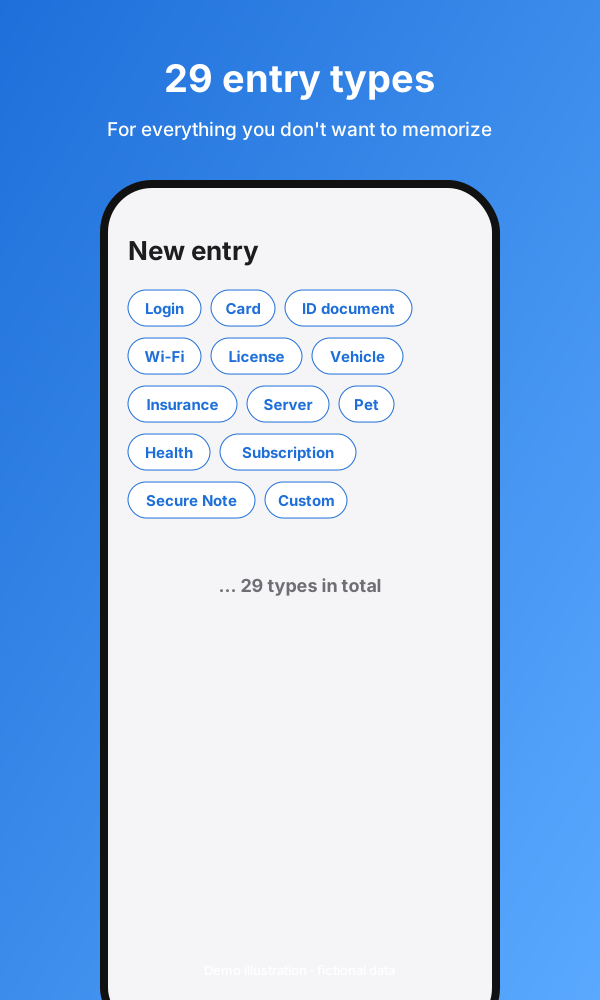
More than a password manager: a safe for everything you don't want to memorize.
From logins to credit cards, IDs and Wi-Fi, all the way to vehicles, pets and “Custom”.
Extend any entry with text, multiline text, hidden values, a date, website, phone or email. Links, numbers and addresses can be opened, called or written to directly.
Attach photos and documents, such as the scan of your ID, to an entry, encrypted (up to 10 files, each up to 10 MB).
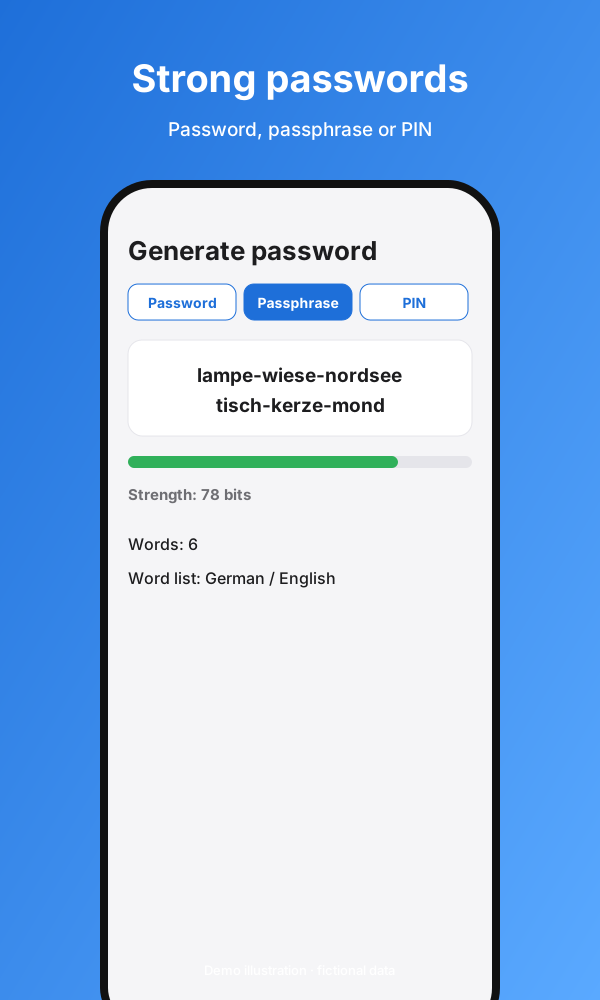
Passwords of any length you choose, passphrases of 4 to 10 words (German or English word list) or PINs of 4 to 12 digits, with a strength display in bits.
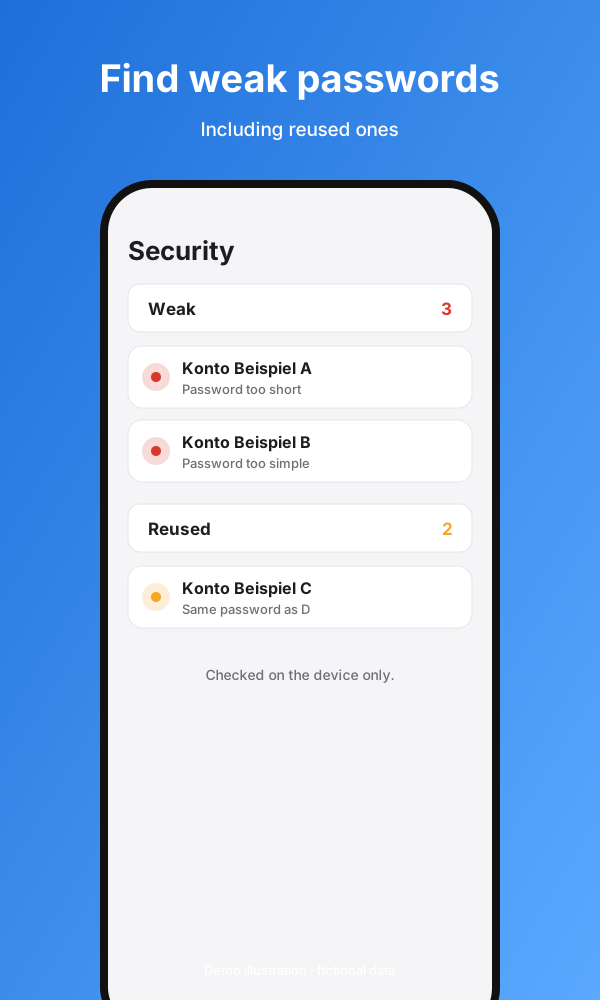
Shows weak and reused passwords. The check runs on the device only; no password is sent over the internet for it.
Every entry can have an expiry date. Optionally the app reminds you beforehand (off by default).
Earlier passwords of an entry are kept (the last 10).
Deleted entries stay in the trash for 30 days and can be restored.
With its own backup password, with attachments if you like and with a selection of individual entries.
Ten scenes to swipe through. These are demo illustrations with fictional data, not real app screenshots.
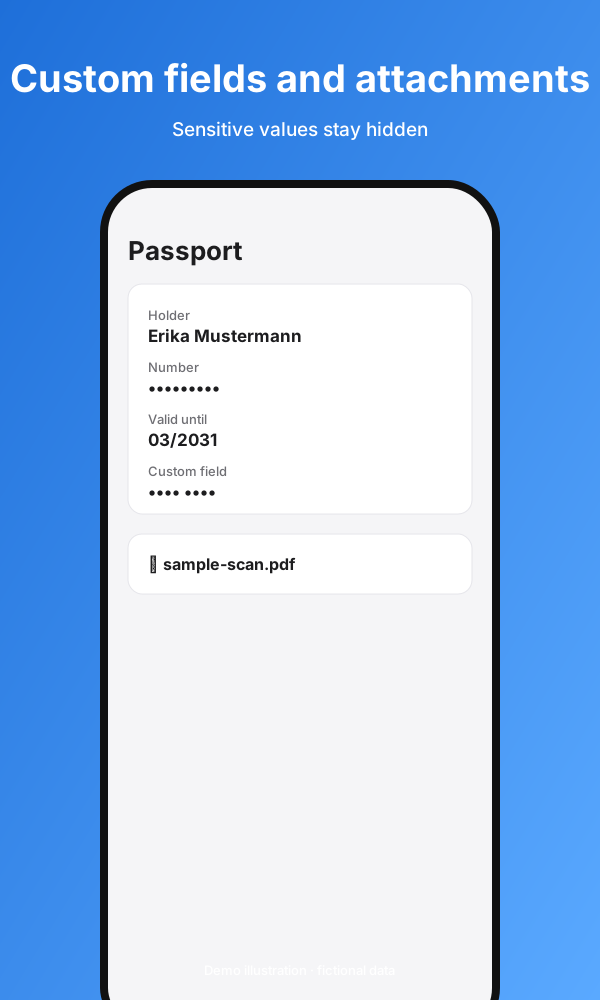
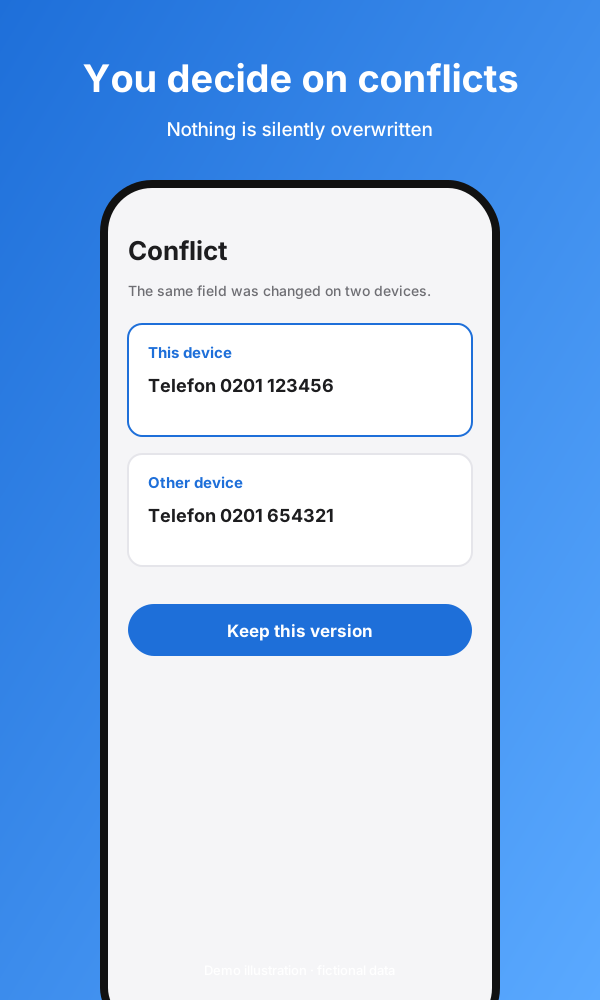
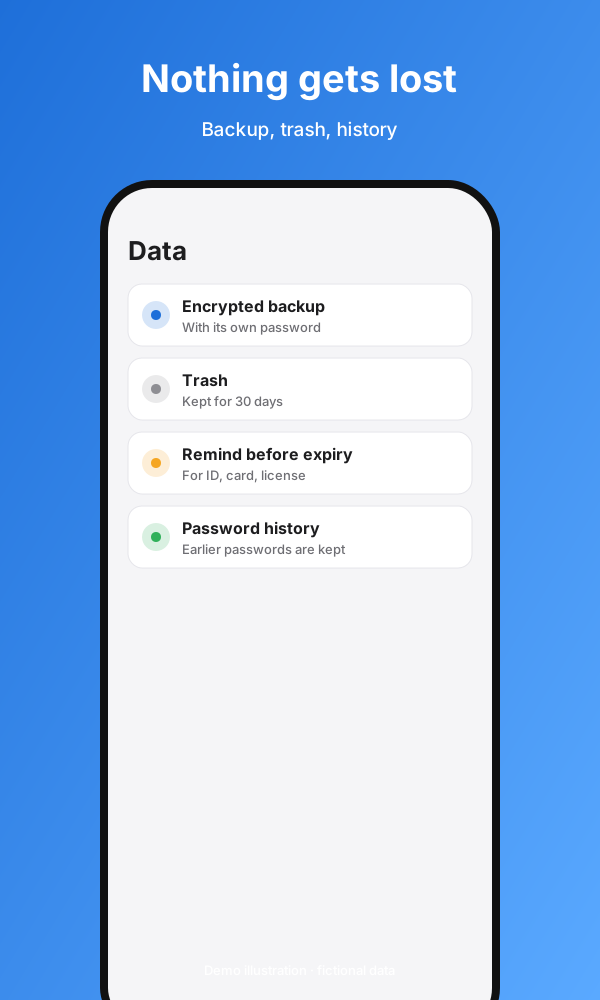
You don't have to understand anything to be protected. Still, it's worth seeing who does what. It matters to tell four things apart that are often lumped together.
A concealed field is not separately encrypted. It simply isn't readable on screen until you choose “Show”. All entries are protected by the encryption of the stored data.
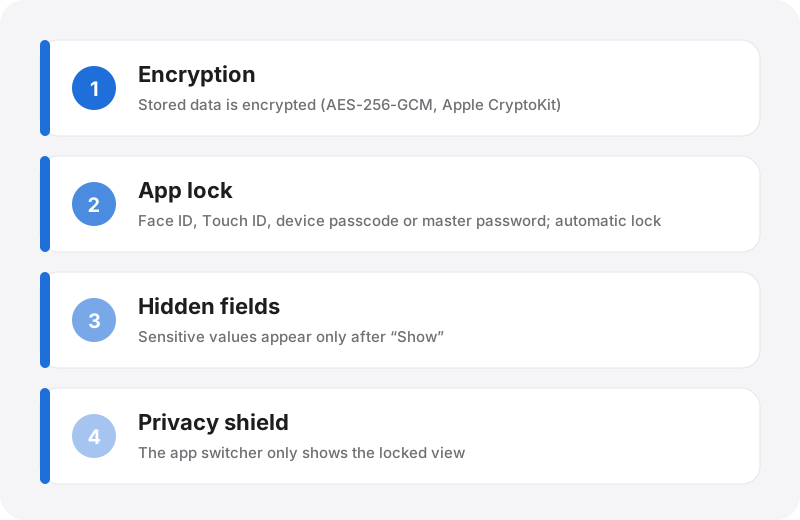
All entries are encrypted with AES-256-GCM using Apple's CryptoKit before they are stored. The key lives in Apple's keychain and is only read when you unlock the app. There is no home-made cryptography and no server of our own.
If you want more protection, turn on your own master password. PBKDF2 (600,000 rounds) derives a key from it that wraps the data key. If you forget the password, there is no back door and no recovery key – so create an encrypted backup.
The app always starts locked. You unlock with Face ID, Touch ID or the device passcode (Mac: Touch ID or Mac password); with the master password turned on, also with the password.
Under Settings › Security you set “Lock after”: steps from 1 to 600 minutes or “Never”, default 5 minutes. With “Never” no timer runs; the app then locks only when the device locks, on sleep, on shutdown or by hand. It locks immediately at launch and when the device locks; on the Mac also on sleep and when the last window closes. On the Mac, ⌘L locks instantly.
If a master password is active, you can turn on “With Face ID / Touch ID” as a shortcut per device (off by default). The password is then required again after a restart and at the latest after 24 hours. “Lock and require password” (hold the red lock button for 2 seconds) forces it at the next unlock.
Copied values are removed from the clipboard after a time you set (5 to 120 seconds, default 60), but only if the clipboard hasn't been changed since. On iPhone and iPad the content stays local (no Universal Clipboard). On the Mac it is marked as confidential.
As soon as the app is no longer active, the locked view covers it. App switcher and window previews therefore never show your entries. On the Mac this also applies when the app is hidden or minimized and in Mission Control; open sheets and search are closed. If you return before the lock timeout, you don't need to unlock again.
Sensitive values such as passwords, PINs, card numbers or codes are concealed until you reveal them per row. Website, phone, email and expiry dates are not concealed. Optionally, “value hints” show the beginning and end of non-critical values.
The app needs neither an account nor a server of its own. The security overview runs only on the device, so no password goes to the internet.
No product can promise absolute security. The “Security” chapter in the app's help explains what the app does and doesn't do.
Using the app is similar on all devices: a list of your entries, a sidebar to narrow them down, details for copying and editing.
iPhone. At the top you switch between “Overview” and “All Entries”. The overview gathers the lists and groups (see below); “All Entries” shows everything. After unlocking, “All Entries” is selected.
iPad & Mac. The sidebar with the overview is on the left, the entries in the middle, and details appear on the right. The layout follows the window width. On the Mac there is a table you can sort via the column header.
By title or website. On iPhone, pull down the list or tap “Search” (⌘F). On iPad and Mac the search field is at the top right and searches the selected list.
By name, type, created or changed, ascending or descending (default: name ascending). Your choice is remembered per device.
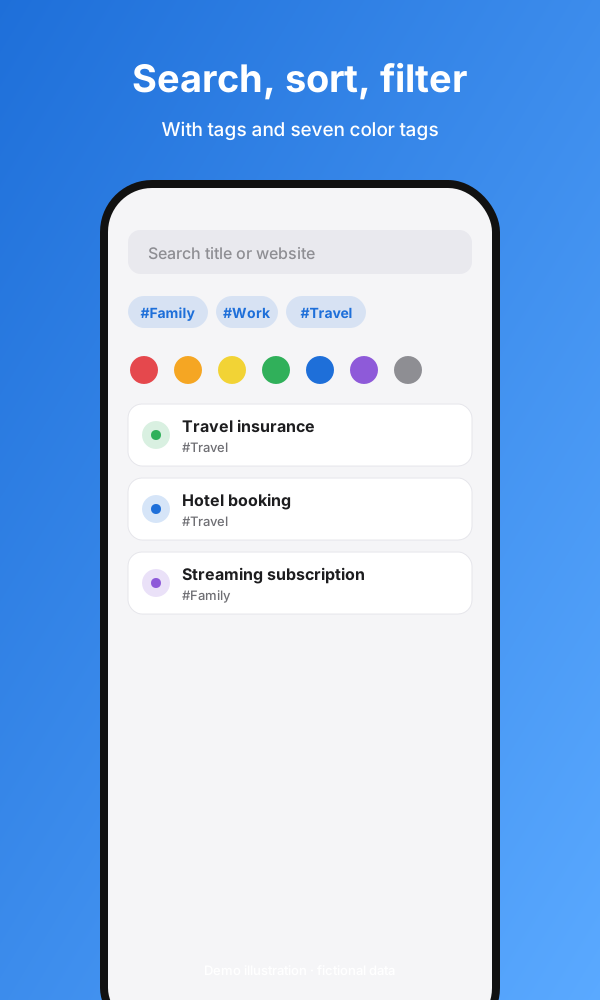
In “All Entries” by tags (all selected must match), color tags and creation period (from/to). “Reset filters” clears the selection.
Recently Changed · Favorites · Pinned · Expiring Soon · Expired
Weak · Reused
Types · Tags · Color tags (seven colors) · Trash
In the app the types are arranged in five groups. The type picker has a search field. Changing the type does not delete any values.
Username and password for a website or app
Typical: Username, password, website
Account with an extra code, e.g. from an authenticator app
Typical: Login details, 2nd-factor note, security question and answer
Customer account at an online shop
Typical: Login details, customer number
Email address with password and server details
Typical: Username, password, incoming and outgoing server
Access to a server or service
Typical: Username, password, host, port, SSH fingerprint
Key and secret for accessing a service
Typical: Service, API key, secret, environment, expiry
Backup codes in case you can no longer sign in
Typical: Service, codes (multiline, hidden)
Code or PIN, e.g. for a door, garage or alarm system
Typical: Location, code
Network name and password of a Wi-Fi network
Typical: Network name, password, security type
Credit or debit card
Typical: Cardholder, number, expiry date, security code, PIN
Bank account with holder, IBAN and BIC
Typical: Account holder, bank, IBAN, BIC, PIN, online banking login
Wallet with address and recovery phrase
Typical: Wallet name, seed phrase, address, PIN
Insurance with provider and policy number
Typical: Insurer, policy number, claims phone, end of term
Subscription or ongoing contract
Typical: Plan, cost, payment method, cancel by
Access and numbers for tax and public authorities
Typical: Tax ID, tax number, social security number, customer number
ID card or passport with number and validity
Typical: Holder, number, valid until, issuing authority
Travel data such as booking numbers and frequent-flyer accounts
Typical: Program or provider, member number, passport number, valid until
Health data such as insurance number and doctor portals
Typical: Health insurer, insurance number, blood type, doctor's office, emergency phone
Access and numbers around child, school and childcare
Typical: Child's name, school or daycare, student ID, class teacher, authorized pick-up persons
Pet data, e.g. chip number and vet
Typical: Name, chip number, vet, contract number, next vaccination
Membership with member number, e.g. club or association
Typical: Provider, member number, validity
Vehicle with plate, chassis number and insurance
Typical: License plate, chassis number, next inspection
Home or rental with landlord, contract and access
Typical: Address, landlord, landlord phone, contract number, end of lease
Household contracts such as electricity, gas or water
Typical: Provider, contract number, meter number, login details
Mobile or internet contract with customer number, SIM PIN and PUK
Typical: Provider, phone number, SIM PIN, PUK, customer number, end of contract
Device with serial number, device code and credentials
Typical: Device name, serial number, PIN, warranty until
Free text that is stored encrypted
Typical: Title, note, custom fields
Software license with key and registration
Typical: License key, licensed to, version, login details
Title and note only; you create all fields yourself
Typical: Any custom fields you add
No matching entry type found. Try “Custom”: there you create every field yourself.
These details exist for every type:
The entry's name. Only the title is required.
An expiry date (month and year). Some types use their own label instead, such as “End of term” or “Cancel by”.
Free text for the entry.
Eight field types: Text, Multiline, Hidden, Multiline Concealed, Website, Email, Phone, Date.
Favorite and Pinned.
Your own tags plus seven color tags (red, orange, yellow, green, blue, purple, gray).
Up to 10 files per entry, each up to 10 MB, encrypted.
Username, password, website and the type-specific fields (see above). “Secure Note” and “Custom” have no predefined fields.
You can change an entry's type later. Switching the type does not delete any values.
Five steps from finding to copying, plus two extras for settings and quick actions.
Five groups, clearly separated.
Language (German/English), appearance, color scheme with nine themes (iPhone and iPad only; the Mac stays with neutral Graphite), value hints. On iPhone and iPad also permissions and haptics.
Automatic lock, clipboard, unlocking, master password and the security overview.
Sync switch (off at first), status, “Sync now” and the conflict manager. This group is omitted in the Mac “Local File” mode.
Storage location (Mac only), reminders before expiry, backup (export/import), manage tags and reset.
Help with detailed chapters (also offline), contact, legal and version.
As an encrypted backup (.onetwosafe) with its own backup password, which is stored nowhere. With attachments if you like and with a selection of individual entries. There is no plain-text export.
Your own backup or an unencrypted JSON file in the OneTwo Safe format (format version 1, up to 16 MiB). The app shows a preview first; nothing is overwritten, differing entries are added as copies. Other formats (e.g. CSV) are not supported.
Create, review and remove tags in one central place.
“Reset settings” restores device defaults only; entries stay. “Delete all entries” removes entries, trash, tags and open conflicts locally and in iCloud, with two confirmations. On the Mac there is also “Start Over …”.
One-time · No subscription · No in-app purchases · No ads
One purchase covers iPhone, iPad and Mac, since all three share the same App Store listing. You pay once and use the app without recurring or hidden costs.
OneTwo Safe for iPhone, iPad and Mac – buy once, use for good.

Anything that should stay secret: logins, cards, bank details, Wi-Fi access, IDs, insurance, licenses, access codes, secure notes and more – 29 entry types in total. You attach photos and documents to an entry, encrypted (up to 10 files per entry, each up to 10 MB).
For iPhone and iPad (iOS or iPadOS 18 and later) and as a native Mac app (macOS 15 and later). There is no Apple Watch app.
Yes. iCloud sync is off at first. As long as it stays off, your entries live only on the respective device. On the Mac you can alternatively choose “Local File”; iCloud then stays off permanently on that Mac.
If you turn it on, the app syncs your entries between iPhone, iPad and Mac via your private iCloud (CloudKit). Entries are encrypted before upload. If two devices change the same field, you decide in the conflict manager which version to keep. Turning it off deletes nothing.
Entries are encrypted with AES-256-GCM using Apple's CryptoKit. The app starts locked and opens with Face ID, Touch ID or your device passcode; an optional master password adds protection. On top come automatic lock, a privacy shield in the app switcher and a clipboard that clears itself. No software can promise absolute protection; the in-app help explains the details in the “Security” chapter.
Then there is no way back: the app has no back door and no recovery key. As a safeguard you can create an encrypted backup with its own backup password and import it into a fresh data set later. The master password is optional – if you don't turn it on, you unlock with Face ID, Touch ID or your device passcode.
Under Settings › Security you choose after how many minutes without use the app locks (steps from 1 to 600 minutes or “Never”, default 5). It locks immediately at launch and when the device locks; on the Mac also on sleep and when the last window is closed. When you switch to another app, only the set time limit starts.
You can export as an encrypted backup (.onetwosafe file) with its own password, with attachments if you like and with a selection of individual entries. There is no plain-text export. You can import such a backup or an unencrypted JSON file in the “OneTwo Safe JSON import, format version 1” format. The app shows a preview first; nothing is overwritten.
Yes. At first launch you choose “Local File”. All entries then live in one encrypted file with its own password (at least 12 characters), for example on a network share or USB stick. Locations in iCloud Drive are rejected. Note: the Mac also keeps an encrypted working copy in the app container, and the file is rewritten from it. So local data does exist on the Mac.
The app costs a one-time €2.99. Since the iPhone, iPad and Mac apps share the same App Store listing, the purchase covers all three (universal purchase). There is no subscription, no in-app purchases and no ads.